

One of my pet peeves is the handling of helper icons (cookie consent widgets, chat widgets, back-to-top buttons) in footers in mobile view.
To me, the site footer is a very, very important patch of real estate, and I tend to utilize it as much as possible. In desktop or tablet mode, this usually doesn’t cause problems because the active area of the page is restricted to a specific width (usually between 1200~1600px, depending on whether wider space is helpful or a nuisance).
On modern laptop and desktop displays this usually means there is ample room to each side of the screen, and the helper icons do not obscure footer content. But on mobile layout, the problem is big, and annoying.
Thankfully, among the many great features of Greenshift/Greenlight is the Interaction Layers function which allows the site maker to associate a ton of functions with a specific GS/GL block. This gives me a very easy way to solve the helper icons problem.
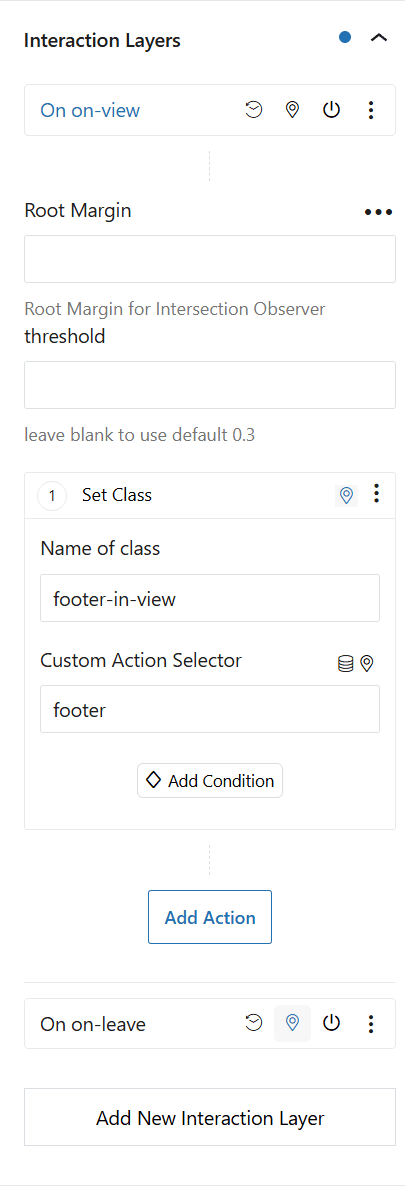
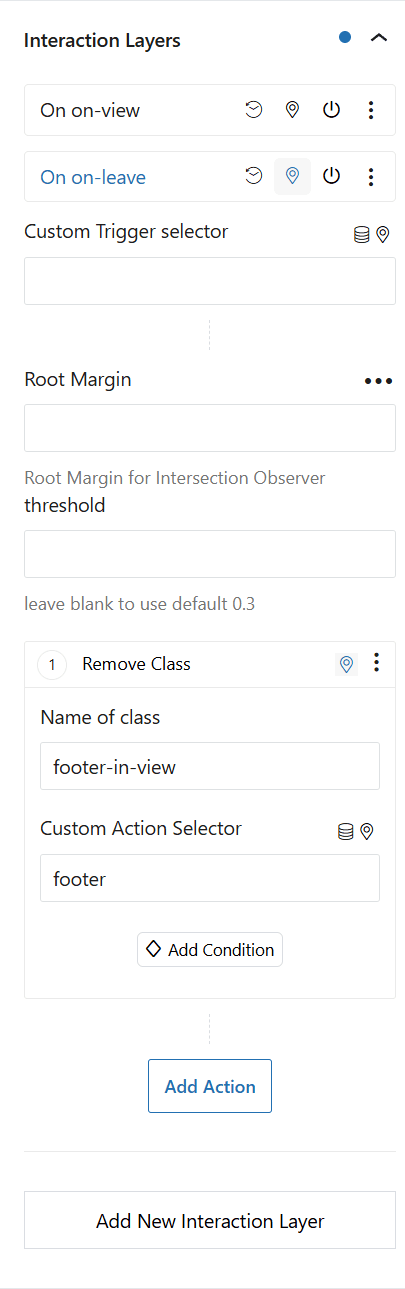
I use an Interaction Layer to configure two operations linked to the footer wrapper block:
- assign a class
footer-in-viewto the targeted block (footer) when it comes into view - remove the same class when the targeted block leaves view
I also assign a bit of custom JavaScript to the same block that runs when the class footer-in-view gets assigned and removed. This is not strictly necessary if I need to hide/show a standard block that is part of the page structure itself, but it gives me significant flexibility when I need to control multiple items at once.
Why does the custom JavaScript snippet piggyback on Greenshift/Greenlight functionality?
Because it makes things infinitely portable for me, so long as I use this builder. I can lean onto its built-in capabilities, and just extend them to satisfy specific needs. If I ever move away from GS/GL then yes — I will need to write my own complete interaction observer. But I have no such plans at the moment, and this separation of concerns works great for me. And this is, after all, a GS/GL dedicated site 🙂
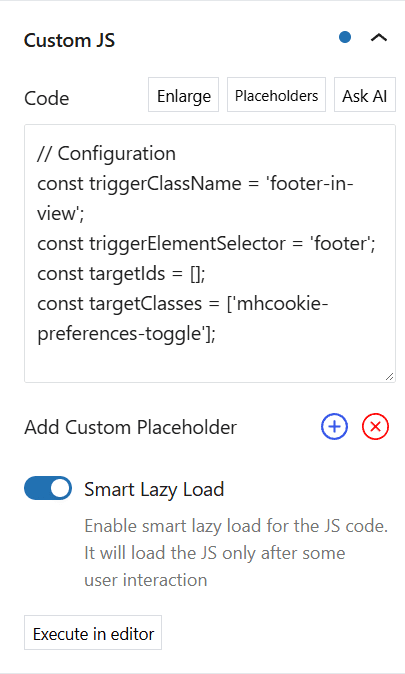
Note the ‘Configuration’ part (lines 2-5):
// Configuration
const triggerClassName = 'footer-in-view';
const triggerElementSelector = 'footer';
const targetIds = [];
const targetClasses = ['mhcookie-preferences-toggle'];These four lines allow me to set everything the way I need it across any site I create with Greenshift/Greenlight.
triggerClassNameis the class my Interaction Layer adds/removes to the reference block depending on visibilitytriggerElementSelectoris the selector of the HTML block I use as the reference for show/hide events (the footer, in my case)targetIds[]andtargetClasses[]are two arrays that I can populate with the names or IDs of the actual targets that I want to show/hide (plaintext, not tagged as#idor.class)
In most recent projects that I build from scratch, I use Must Have Cookie as my consent management solution (you are welcome to avail yourself of a $20 coupon if you decide to buy a license for yourself; use code REFLWC5HR during checkout). That is why the mhcookie-preferences-toggle class is present by default in the targetClasses array of my code snippet — it is almost a certainty I will be needing it.
Greenshift’s own “back to top” widget does not use a class but an ID, and if I used that one and wanted it moved away in my footer, I’d add greenshifttotop to my list of targetIds. Other class names and HTML block IDs will come and go as needed on a per-project basis.
Two final things worth mentioning.
- Observe that I have enabled “Smart Lazy Load” for that JS snippet. This makes Greenshift/Greenlight queue the entire script to page interaction, which means no load/run penalty.
- The snippet uses
console.log()liberally to tell the user what it does. This has little use in production sites so feel free to dump these outputs once you know how this snippet works.
You are welcome to use this code as is, or adapt it to your needs. No attribution is required, but I will be glad to know if you found it useful — send me a message via the Contact page.